How to Track AI Traffic in Google Analytics 4
With the explosion of Large Language Models (LLMs), users are no longer just finding your site through Google Search or social media. They are asking ChatGPT for recommendations, prompting Claude for deep dives, and using Perplexity as their primary search engine.
The problem? By default, GA4 often buries this traffic under generic “Referral” categories. To understand the impact AI is having on your brand, you need a custom GA4 Exploration Report.
Here is how to set it up in five minutes.
Why Monitor AI Traffic?
Traditional search traffic is about keywords, but AI traffic is about intent. If a user clicks a link inside an AI’s response, they have already been “vetted” by the model.
By tracking Sessions alongside Engagement Rate, you can see if these users are actually staying on your site or if the AI is sending you low-quality, mismatched clicks.
Step-by-Step: Building the AI Traffic Explorer
1. Start a New Exploration
Log in to your GA4 property and click the Explore tab on the left-hand sidebar. Select Blank to start with a clean slate.
2. Import Your Variables
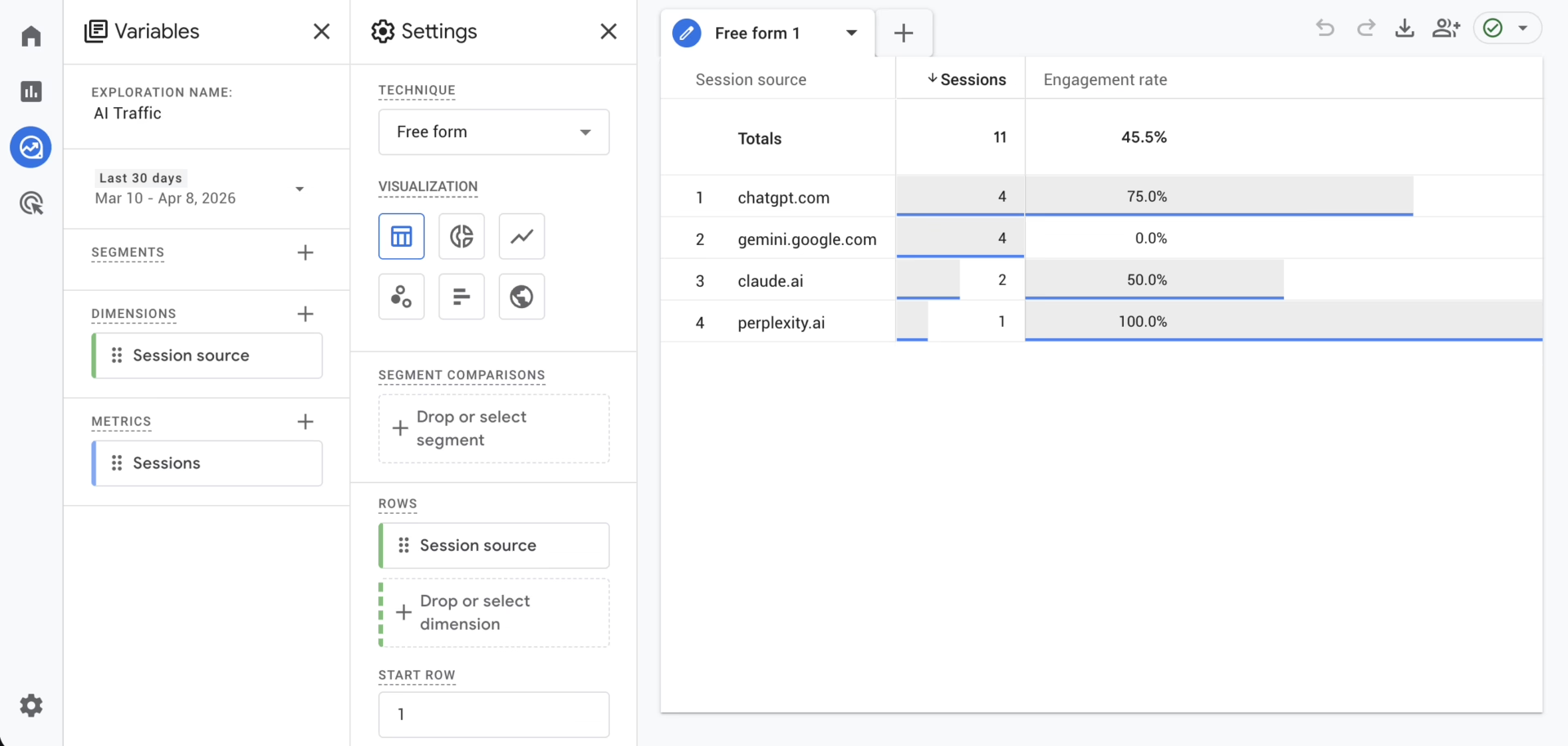
The “Variables” column on the left acts as your palette. You need to tell GA4 which specific data points you want to work with:
- Dimensions: Click the + and search for Session source. Import it.
- Metrics: Click the + and search for Sessions and Engagement rate. Import both.
3. Configure the Layout
Now, move your imported variables into the Tab Settings column:
- Rows: Drag Session source here.
- Values: Drag Sessions and Engagement rate here.
At this point, you’ll see every single traffic source for your site. Now, we need to filter for the AI “Big Players.”
The Secret Sauce: The AI Regex
Scroll down to the Filters section at the bottom of the Tab Settings. This is where we isolate the AI platforms.
- Select Session source as the dimension.
- Select matches regex as the match type.
- Paste the following string:
(chatgpt|openai|anthropic|deepseek|grok)\.com|(gemini|bard)\.google\.com|(perplexity|claude)\.ai|(copilot\.microsoft|edgeservices\.bing)\.com|edge\scopilot
What this Regex covers:
- OpenAI/ChatGPT: Catching both the app and corporate domains.
- Google Gemini/Bard: Monitoring Google’s evolving AI ecosystem.
- Anthropic/Claude: Identifying high-intent technical users.
- Microsoft Copilot: Capturing traffic from both the Copilot site and Edge browser integrations.
- Emerging Players: Including Perplexity, Grok, and DeepSeek.
Analyzing the Results
Once you hit Apply, your table will update to show only the traffic originating from these AI hubs.
What to look for:
- High Engagement Rate: If your AI-driven traffic has an 80% engagement rate compared to a 40% site average, it means AI models are doing an excellent job of matching your content to the user’s question.
- Low Session Count: Don’t panic if the numbers are smaller than Google Search. AI traffic is currently “quality over quantity.”
- Source Shifts: Watch which model is sending you the most traffic. Is Perplexity outperforming ChatGPT? This might influence where you focus your brand mentions or technical SEO.
Final Thought
The web is changing. We are moving from a world of “search and click” to “ask and receive.” By setting up this report today, you’re ensuring that your marketing strategy isn’t flying blind in the age of AI.